Adapting to Safari: Navigating Apple's Default Browser After Android Chrome
The Shift from Chrome to Safari: A New Browsing Paradigm
For many Android users, Google Chrome has been the default gateway to the internet for years, if not a decade. Its ubiquity, synchronization features, and extensive extension library make it a powerful tool. When you make the switch to an iPhone, however, you're introduced to Safari, Apple's native web browser. While you can install Chrome on iOS, understanding and adapting to Safari's unique approach can significantly enhance your iPhone experience. This isn't just about a different interface; it's about a different philosophy towards web browsing, deeply integrated into the Apple ecosystem.
Editor's pick: Android-to-iPhone migration accessories on Amazon → As an Amazon Associate, this site earns from qualifying purchases.
Navigating the Safari Interface: Familiar Yet Distinct
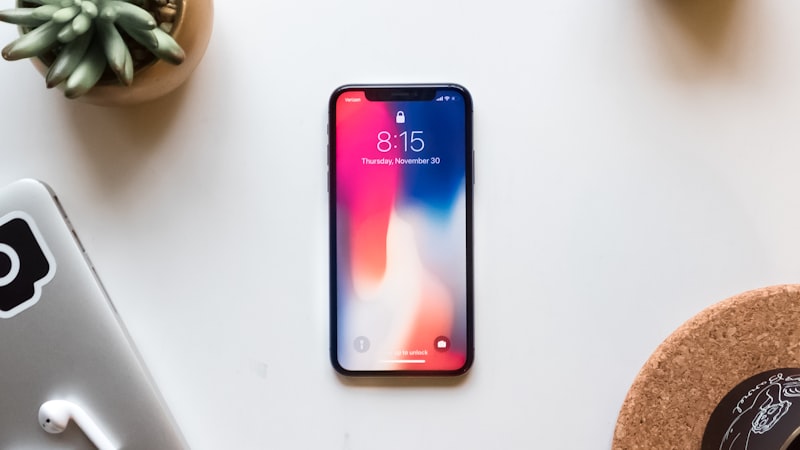
The first thing Android switchers often notice about Safari is its user interface. Depending on your iOS version and settings, the address bar might reside at the bottom of the screen, designed for easier one-handed access. While this is customizable to the top, it represents Apple’s attention to ergonomic detail. Navigation buttons, tab management, and the integrated share sheet operate with a distinct iOS flair. Instead of a grid of open tabs, Safari often defaults to a card-like view, offering a quick overview and simple closing actions. Familiarizing yourself with these visual and functional differences is the initial step in a smooth transition.
Privacy as a Core Tenet: Beyond Incognito
One of Safari's most significant differentiators from Chrome, especially for privacy-conscious users, is its robust suite of built-in privacy features. Safari's Intelligent Tracking Prevention (ITP) works silently in the background to limit cross-site tracking, making it harder for advertisers to follow you across different websites. This goes a step beyond Chrome's incognito mode, which primarily prevents local browsing history storage. Additionally, Safari integrates with Apple's Private Relay (part of iCloud+), which encrypts your internet traffic and routes it through two separate relays, masking your IP address from websites and network providers. Features like "Hide My Email," also an iCloud+ benefit, allow you to create unique, random email addresses for sign-ups, forwarding messages to your real inbox without revealing it. These features represent a fundamental shift from Chrome's model, offering a more private browsing experience by default.
Efficient Tab Management and Organization
Safari offers powerful tools for managing your browsing sessions. Tab Groups allow you to organize related tabs into custom collections, accessible across all your Apple devices. This is particularly useful for research projects, shopping lists, or vacation planning, keeping your browser tidy without having dozens of unrelated tabs open. Private Browsing mode, similar to Chrome's Incognito, prevents Safari from remembering the pages you visit, your search history, or your AutoFill information. However, Safari’s implementation often feels more integrated and accessible, making it easier to switch between private and regular browsing without disrupting your workflow.
Seamless Ecosystem Integration: The Apple Advantage
Where Safari truly shines for iPhone users is its deep integration with the wider Apple ecosystem. iCloud Keychain securely stores your passwords, passkeys, and credit card information, automatically filling them in Safari and across apps. This eliminates the need for third-party password managers for many users and ensures strong, unique passwords for every site. Handoff allows you to seamlessly continue browsing a webpage on your Mac or iPad exactly where you left off on your iPhone. Features like "Shared with You" intelligently surface content shared with you in Messages directly within Safari's start page, streamlining discovery. This interconnectedness is a key benefit for users who embrace the Apple ecosystem beyond just their iPhone.
Extensions and Content Blocking: A Focused Approach
While Chrome boasts a vast extension store, Safari's approach to extensions is more curated, often prioritizing privacy and performance. Content Blockers are a prime example. These extensions, which can be enabled directly from Safari's settings, effectively block ads, trackers, and other intrusive elements, leading to faster loading times and a cleaner browsing experience. Many popular ad blockers available on Android also have excellent Safari counterparts. While the sheer volume of niche extensions might be less than Chrome's, Safari's offerings are typically well-optimized and focused on enhancing privacy, security, and the core browsing experience.
Understanding Reader View and Accessibility
Safari's Reader View is a standout feature for consuming long-form content. With a single tap, it strips away ads, navigation, and other clutter from a webpage, presenting the article text and images in a clean, customizable format. You can adjust font size, style, and background color for optimal readability, making it a powerful tool for focused reading. This feature, combined with iOS-wide accessibility settings for text size and display adjustments, offers a highly personalized reading experience that Android switchers will appreciate.
Default Browser Choices: Beyond Safari
While Safari is the default, iOS does allow you to set a different default browser, including Chrome, if you prefer. However, it’s worth considering the advantages Safari offers. Its optimizations for iPhone battery life, deep integration with iOS features like iCloud Keychain and Handoff, and strong privacy protections often make it the most efficient and secure choice for the platform. For new switchers, investing time in understanding Safari can unlock a more cohesive and private browsing experience that leverages the full power of their new iPhone.