Navigating iPhone App Updates: A Comprehensive Guide for Android Switchers
Seamless Transitions: Understanding iPhone App Updates After Android
One of the more subtle yet significant shifts Android users experience when moving to iPhone is the approach to application updates. While both platforms aim to keep your apps current, the underlying philosophies and control mechanisms can feel distinct. Android often provides more granular, visible control over individual app updates and background processes, whereas iOS tends towards a more streamlined, automated, and system-managed experience. Understanding these differences is key to a smooth transition and optimising your new iPhone's performance and data usage.
Editor's pick: Android-to-iPhone migration accessories on Amazon → As an Amazon Associate, this site earns from qualifying purchases.
Automatic App Updates: The iOS Default
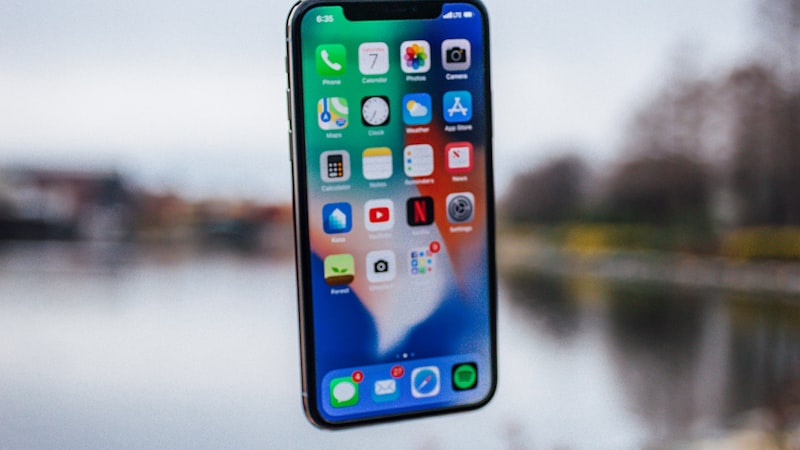
By default, your iPhone is configured to update apps automatically. This means that when a new version of an app is released, iOS will download and install it in the background, typically when your device is connected to Wi-Fi, charging, and locked. This design minimizes user intervention, ensuring you always have the latest features, bug fixes, and security patches without needing to manually check the App Store daily.
- Wi-Fi Priority: Automatic downloads usually prioritize Wi-Fi connections to conserve your cellular data allowance.
- Cellular Data Option: You can enable automatic downloads over cellular data for apps in Settings > App Store. However, caution is advised here, especially for larger app updates, as this can quickly consume your data plan. For more detailed management of your network settings, refer to our guide on adapting to iPhone's cellular and Wi-Fi management.
- Background Process: Updates typically happen silently in the background, ensuring your phone remains usable without interruption.
Taking Manual Control: When and How to Update Apps
Despite the convenience of automatic updates, there are scenarios where manual control is preferred. Perhaps you want to conserve data, avoid a specific update due to reported issues, or simply prefer to oversee the process. Manually updating apps on iPhone is straightforward:
- Open the App Store application.
- Tap your profile picture in the top-right corner.
- Scroll down to see pending updates or 'Updated Recently'.
- You can tap 'Update All' or 'Update' next to individual apps.
If you wish to disable automatic updates entirely to gain full manual control, navigate to Settings > App Store and toggle off 'App Updates' under the 'Automatic Downloads' section.
Understanding Background App Refresh
A concept often confused with app updates but closely related is 'Background App Refresh'. On Android, users might be accustomed to more direct control over which apps run in the background. On iPhone, Background App Refresh allows apps to check for new content in the background when connected to Wi-Fi or cellular. While not directly an 'update' mechanism for the app's core code, it ensures that when you open an app, its content is already fresh.
- Managing Refresh: You can manage this setting in Settings > General > Background App Refresh. Here, you can choose to allow refresh over Wi-Fi, Wi-Fi & Cellular Data, or turn it off entirely for specific apps or universally.
- Impact on Battery and Data: While convenient, excessive background app refresh can impact battery life and cellular data usage. Reviewing this list and disabling it for less critical apps can be beneficial.
Data Usage and Storage Considerations
For Android switchers, monitoring data usage for app updates can be a point of adjustment. iOS provides a clear breakdown:
- Cellular Data Usage: Go to Settings > Cellular. Scroll down to 'Cellular Data' to see which apps have used data and how much. You can toggle off cellular data for individual apps here, preventing them from updating or refreshing over your mobile network.
- Storage Impact: App updates can vary in size. While iOS efficiently manages storage, regularly updated apps will accumulate data. You can check app sizes in Settings > General > iPhone Storage. If an app's stored data becomes excessive, reinstalling it can sometimes free up space, though this is less common for simple updates.
Security and Performance: The iOS Philosophy
Apple's approach to app updates prioritizes security, stability, and a consistent user experience. By encouraging automatic updates and using a sandboxed app environment, iOS aims to ensure that users are running the most secure versions of their applications. This reduces the attack surface for vulnerabilities and often improves overall app performance and compatibility with the latest iOS features. For switchers, this often translates to less time spent managing updates and more time enjoying a reliably functioning device.
Conclusion for Switchers
Adjusting to iPhone's app update ecosystem means embracing a more hands-off, automated approach. While Android offered extensive manual control, iOS streamlines the process, aiming for convenience and enhanced security. Take time to explore your App Store settings, understand Background App Refresh, and monitor your cellular data usage. Once accustomed, you'll find that iPhone's update system seamlessly keeps your apps current, allowing you to focus on the powerful capabilities of your new device.