Adapting to the iPhone's Control Center: A Deep Dive for Android Switchers
Adapting to the iPhone's Control Center: A Deep Dive for Android Switchers
Switching from Android to iPhone often involves learning new ways to accomplish familiar tasks. One area where this is particularly true is accessing quick settings. Android users are accustomed to a highly customizable and readily accessible Quick Settings panel. The iPhone’s Control Center, while powerful, requires a slightly different mindset and approach.
Editor's pick: Android-to-iPhone migration accessories on Amazon → As an Amazon Associate, this site earns from qualifying purchases.
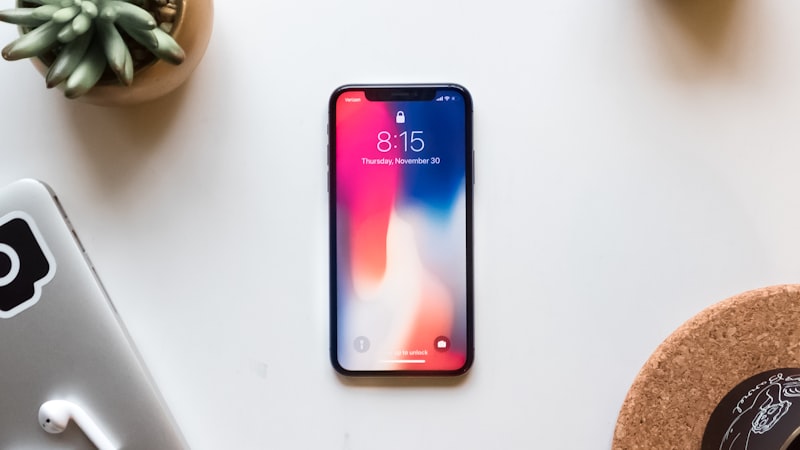
The Control Center on iPhone is accessed by swiping down from the top-right corner of the screen (on iPhones with Face ID) or swiping up from the bottom edge (on iPhones with a Home button). This gesture reveals a collection of tiles providing instant access to various system settings and app features. While the core functionality is similar to Android's Quick Settings, the customization options and integration with the iOS ecosystem offer a unique experience.
Understanding the Default Layout
Out of the box, the Control Center provides shortcuts to commonly used settings such as Wi-Fi, Bluetooth, cellular data, screen brightness, volume, and music playback controls. It also includes quick access to features like the camera, flashlight, calculator, and screen recording. While these defaults are generally useful, the true power of the Control Center lies in its customizability.
Customization is Key
Unlike Android's Quick Settings, which often allow for reordering and resizing of tiles, the iPhone's Control Center offers a different type of customization. Users can add or remove controls from the Control Center through the Settings app (Settings > Control Center). This allows you to tailor the Control Center to your specific needs and workflow. For example, frequent users of the Notes app might add a quick shortcut to create a new note, while those who rely heavily on timers can add a timer shortcut.
The list of available controls includes a wide range of options, from accessibility features like Guided Access to smart home controls for HomeKit accessories. You can add shortcuts for alarms, Do Not Disturb, Low Power Mode, and even text size adjustments. This level of customization allows you to create a Control Center that is truly personalized and efficient.
Leveraging Haptic Touch and Long Press Gestures
Many of the controls in the Control Center support Haptic Touch or long-press gestures, revealing additional options and settings. For example, pressing and holding on the Wi-Fi tile provides access to a list of available networks, while pressing and holding on the music playback controls reveals more detailed playback options. These hidden layers of functionality add a significant amount of utility to the Control Center and are worth exploring.
Deeper Integration with the iOS Ecosystem
The Control Center is deeply integrated with the iOS ecosystem, allowing for seamless control of various system features and apps. For instance, the HomeKit controls in the Control Center provide a centralized hub for managing smart home devices. Similarly, the screen mirroring controls allow for quick and easy streaming of content to Apple TV or other compatible devices. This tight integration with the iOS ecosystem is a key differentiator from Android's Quick Settings.
Third-Party App Integration
While Apple controls which apps can directly integrate into the Control Center, some apps offer workarounds to add functionality. For example, some third-party music apps might offer widgets that can be added to the Today View (accessed by swiping right from the Home Screen or Lock Screen), providing similar quick access to playback controls. As we explored in our analysis of display technology at iPhone View, the always-on display on newer iPhone models further enhances the visibility and accessibility of these widgets.
Limitations Compared to Android
Despite its strengths, the Control Center does have some limitations compared to Android's Quick Settings. One limitation is the lack of granular control over tile placement and size. Android allows users to rearrange and resize tiles to their liking, while the iPhone's Control Center offers a more fixed layout. Another limitation is the limited number of third-party apps that can directly integrate into the Control Center. While workarounds exist, they are not as seamless or integrated as native Android Quick Settings.
Conclusion
Adapting to the iPhone's Control Center requires a shift in mindset for Android switchers. While it may not offer the same level of granular customization as Android's Quick Settings, the Control Center provides a powerful and efficient way to access essential system settings and app features. By understanding its layout, customization options, and integration with the iOS ecosystem, Android converts can master the Control Center and streamline their iPhone experience. Additionally, consider how the evolving design language of the iPhone, as discussed at iPhone Arc, influences the discoverability and usability of features like Control Center over time.